
Drawings
The ninth sub tab, “Drawings”, gives you the ability to attach a reference to a graphic file to your work order and view them. ShopPAK currently supports DXF, DWG, JPEG, JPG, BMP, and WMF graphic formats.
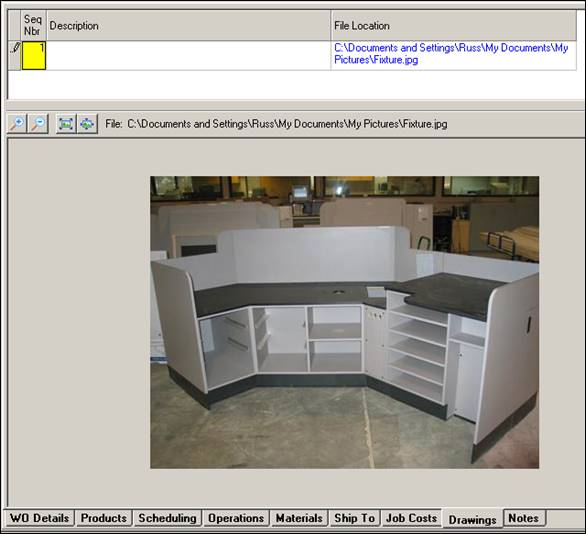
Add a New Graphic File Reference
1. Right mouse click the file area at the top of the form. Choose ‘New’ from the pop up menu.
2. This displays the “Open” dialog box. Navigate to the graphic file you want to reference and click “Open” to add to your list of files. Note: We show a thumb nail view of the graphic, but we also provide the  button to preview the graphic file in a pop up viewer.
button to preview the graphic file in a pop up viewer.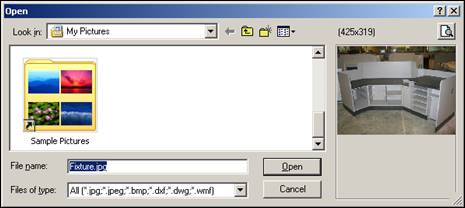
Remove a Graphic File Reference
1. Select the drawing you want to remove. Note: This doesn’t delete the graphic file, it merely removes the reference from the work order.
2. Right mouse click the file area at the top of the form. Choose ‘Remove’ from the pop up menu.
3. ShopPAK confirms the removal request. Select “Yes” to remove the graphic file from your list of files. Select “No” to cancel the removal request.
Drawing Buttons
Four buttons are available for manipulating the selected graphic.
Zoom In  Drills down into an area of the drawing so you can see finer details.
Drills down into an area of the drawing so you can see finer details.Zoom Out  Zooms out of the drawing so you can see a larger and larger area of the drawing.
Zooms out of the drawing so you can see a larger and larger area of the drawing.Best Fit  Sizes the drawing so it shows the entire drawing within the current size of the window.
Sizes the drawing so it shows the entire drawing within the current size of the window.Actual Size  Shows the drawing in its actual size in pixels.
Shows the drawing in its actual size in pixels.