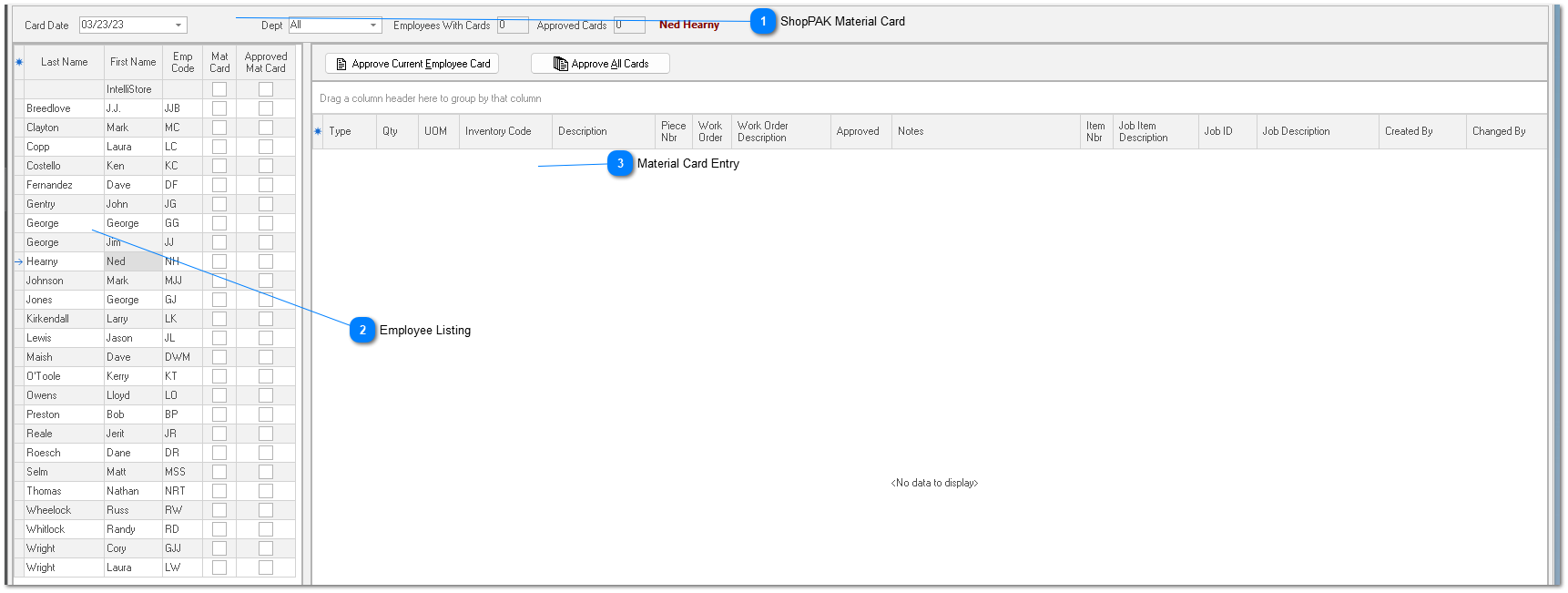
The ShopPAK material card consists of transactions that were posted on a particular day for a particular employee. A material card shows the stock items that an employee either ‘picked’ from inventory, or the unused stock ‘returned’ back into inventory. Each transaction identifies the Job, Job Item, and Work Order that the material was logged against.
TIP: We encourage you to enter transactions on a daily basis, however, ShopPAK doesn’t stop you from summarizing material transactions by the week or some other interval.
To be included in the employee list, an employee must have their “Show on Time Card / Material Card List” checked on their employee record.
ShopPAK Material Card
A material card shows the stock items that an employee either ‘picked’ from inventory, or the unused stock ‘returned’ back into inventory. Each transaction identifies the Job, Job Item, and Work Order that the material was logged against.
Card Date
In the upper left corner of the form, you’ll see ‘Card Date’. Use ‘Card Date’ to display the transactions that have been posted on a particular date. To select a transaction card date, key in a date or use the drop down calendar to pick a date. The transactions posted for that date will now display.
Dept
Next to ‘Card Date’ is another filtering pick box à Department. If you select “All” then all employees are listed. If you select a particular department, then only employees in that department are listed. You place employees in their primary department when you define them via ShopPAK’s Define | Employee menu item:
Employees With Cards
For a given card date, ShopPAK displays the number of employees that have job cards.
Approved Cards
For a given card date, ShopPAK displays the number of employees with approved job cards.
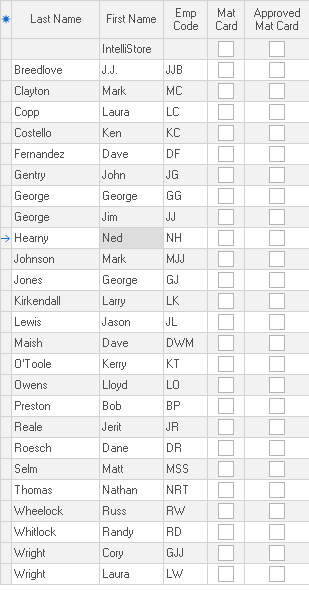
On the left side of the form you’ll find the employee list. All employees that have “Show on Time Card / Material Card List” checked in their employee record are listed. (See “Chapter 4 - Setup and Options” page 15 for instructions on defining employees). To see a particular employee’s transactions, or to add new transactions to a particular employee, select the employee with your mouse. You’ll notice that the name of the currently selected employee is displayed in the upper right hand area of the form.
Material Card
Indicates if the employee has any inventory material card transactions for the selected card date.
Approved Job Card
Indicates if the employee has an approved inventory material card for the selected card date.