Defining GL Account Codes
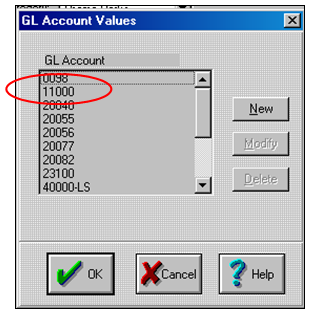
In ProjectPAK, selecting Define | GL Accounts from the menu displays the “GL Account Values” dialog box.
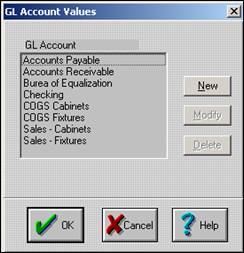
Use this dialog box to define the subset of actual GL Account codes you use in your accounting package for accounts payable, accounts receivable, cash accounts, sales tax collection account, expense accounts, and sales / revenue accounts.
It is critical that a ProjectPAK GL Account Code EXACTLY matches its corresponding GL Account code in your accounting package. Don’t add descriptions – enter only the actual GL Account code. If you don’t match the GL Account codes exactly, exporting transactions into your accounting package will fail.
For example, in the QuickBooks “Edit Account” dialog box below, we’ve defined the GL Account code for accounts payables as Accounts Payable. When adding a QuickBooks GL Account Code to ProjectPAK, make sure you enter the GL account code exactly as entered in the “Name” edit box.
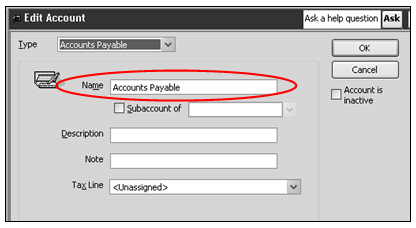
In other versions of QuickBooks, they have a spot for GL Account Code and another spot for Name. You may need to experiment to make sure that you’re entering the correct GL Account code into ProjectPAK that the accounting interface import utility requires for successfully importing financial transactions. For QuickBooks, you should enter the text from the ‘Name’ field.
Note: ProjectPAK has a 22 character limit on GL Account length.
|
When defining GL Accounts in Sage 50 (Peachtree), there is a field for ‘Account ID’ and another field for ‘Description’. Make sure you add the GL ‘Account ID’ not the ‘Description’ field when creating GL Accounts in ProjectPAK.
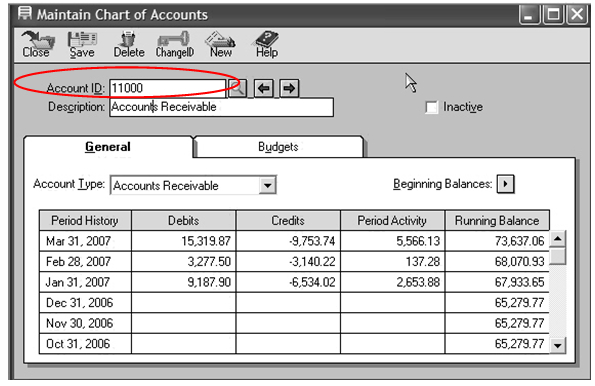
For example, in Peachtree we defined the GL Account code for Accounts Receivables as 11000. When adding this GL Account code to ProjectPAK, we add 11000 to the list of GL Account codes via Define | GL Accounts in ProjectPAK.