Creating a New Job Item
1. Select the Job from the Job Tree that you want to add a new Job Item under.
Note: You must have a Job in the Job Tree before you can add a new Job Item. Refer to “Chapter 6 - Job Form” for instructions on creating a new job or opening an existing job.
|
2. Right mouse click the Job Tree area. This displays the Job Tree pop up menu.
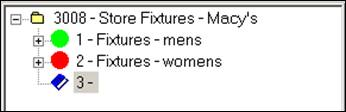
3. Select New Job Item from the menu. ShopPAK creates a new Job Item icon in the Job Tree, and initializes the Job Item form fields with any default Job Item values. (Default job item values are set via the “ShopPAK Options” dialog box). A new Job Item icon  (closed book) is added to the Job Tree. The next Job Item number is assigned to the Job Item. You can now start editing the new Job Item.
(closed book) is added to the Job Tree. The next Job Item number is assigned to the Job Item. You can now start editing the new Job Item.